

Prerequisites
- You need a Microsoft account associated with your organization
- Your organization must have Microsoft Single Sign-On (SSO) configured
Steps
1. Start the Microsoft sign-in process
Click on “Continue with Microsoft” to begin the authentication process.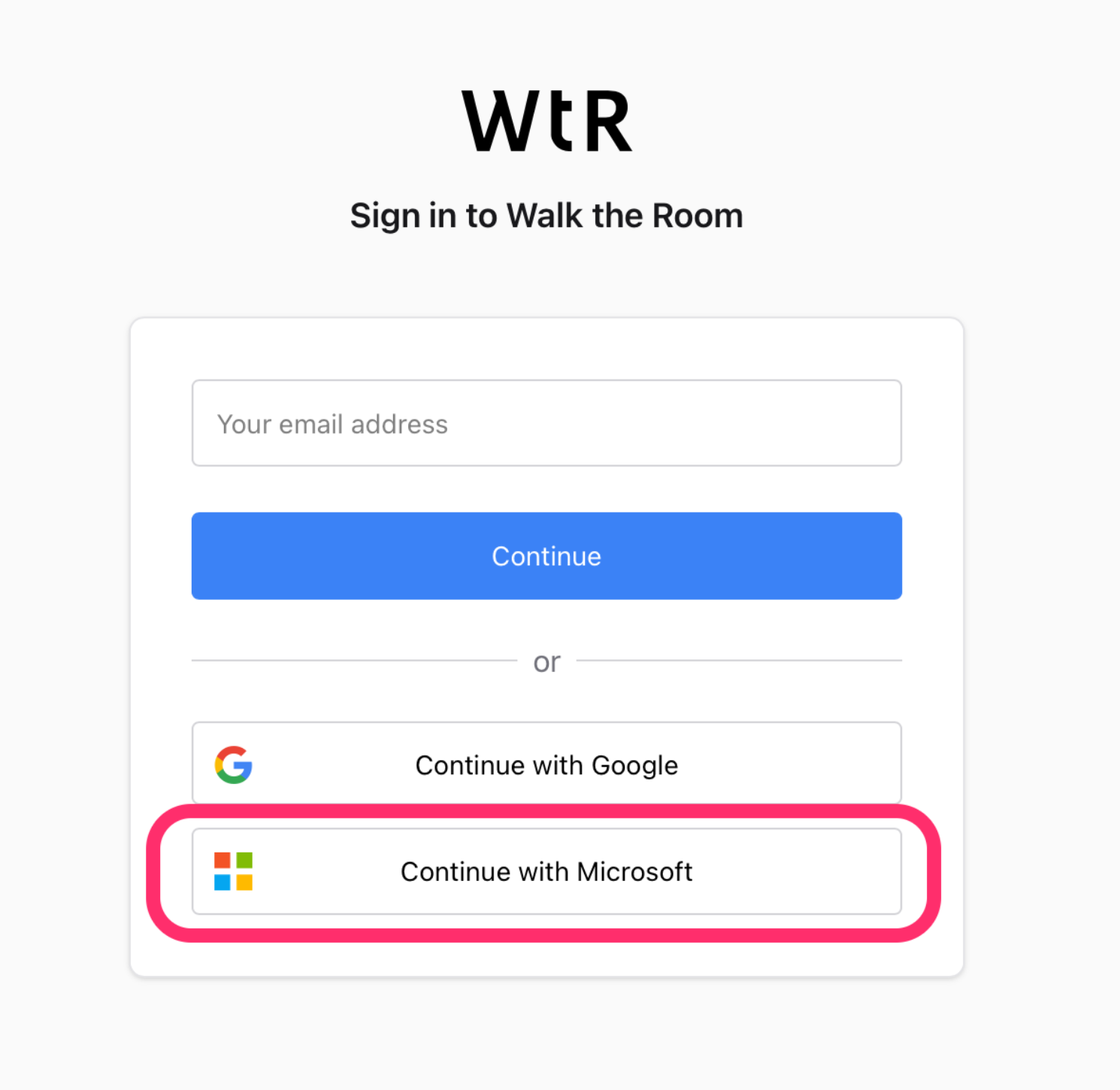
2. Access sign-in options
Click on “Sign-in options” without entering an email address first.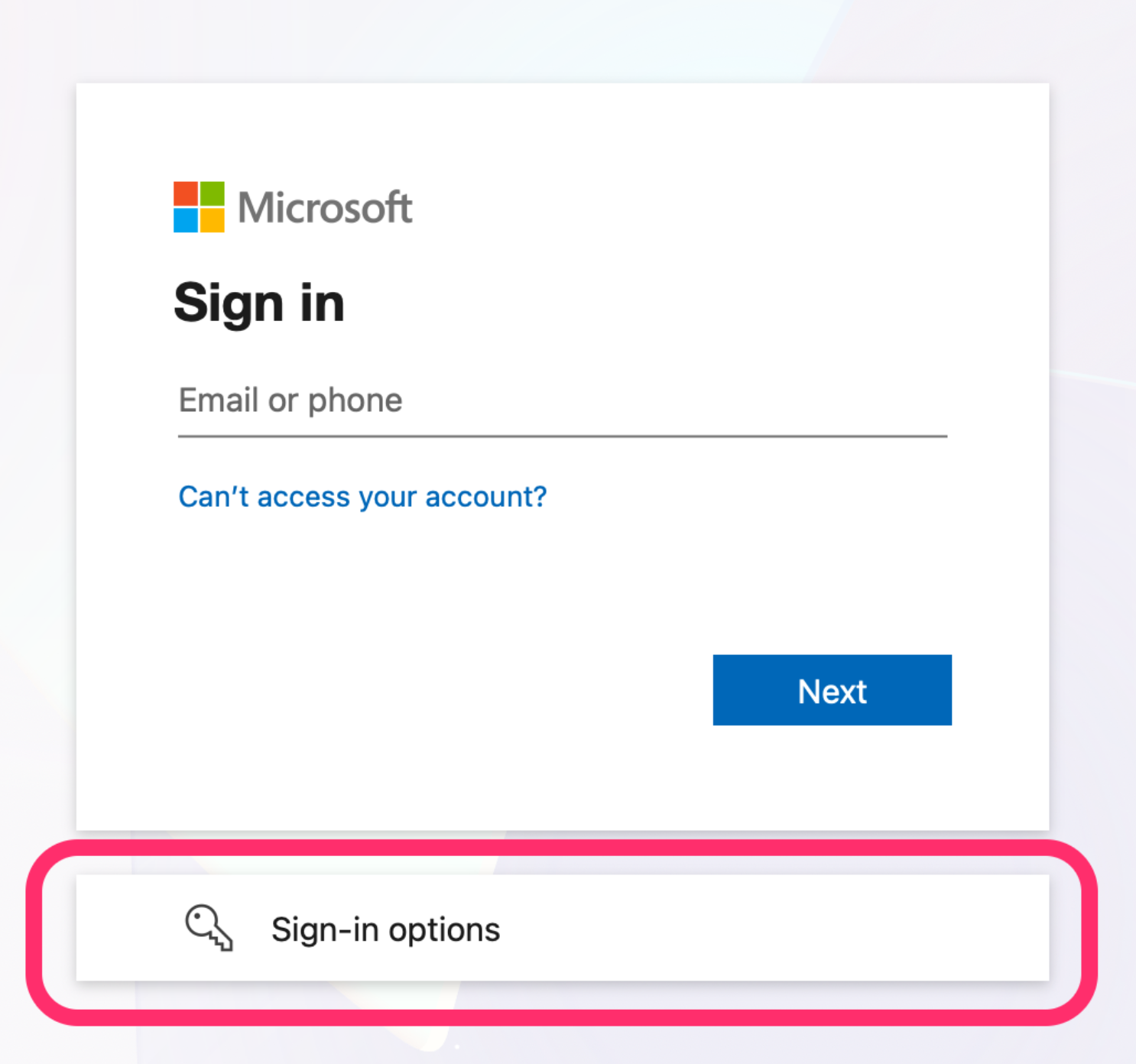
3. Select organization sign-in
Click on “Sign-in to an organisation” to access your corporate Microsoft account.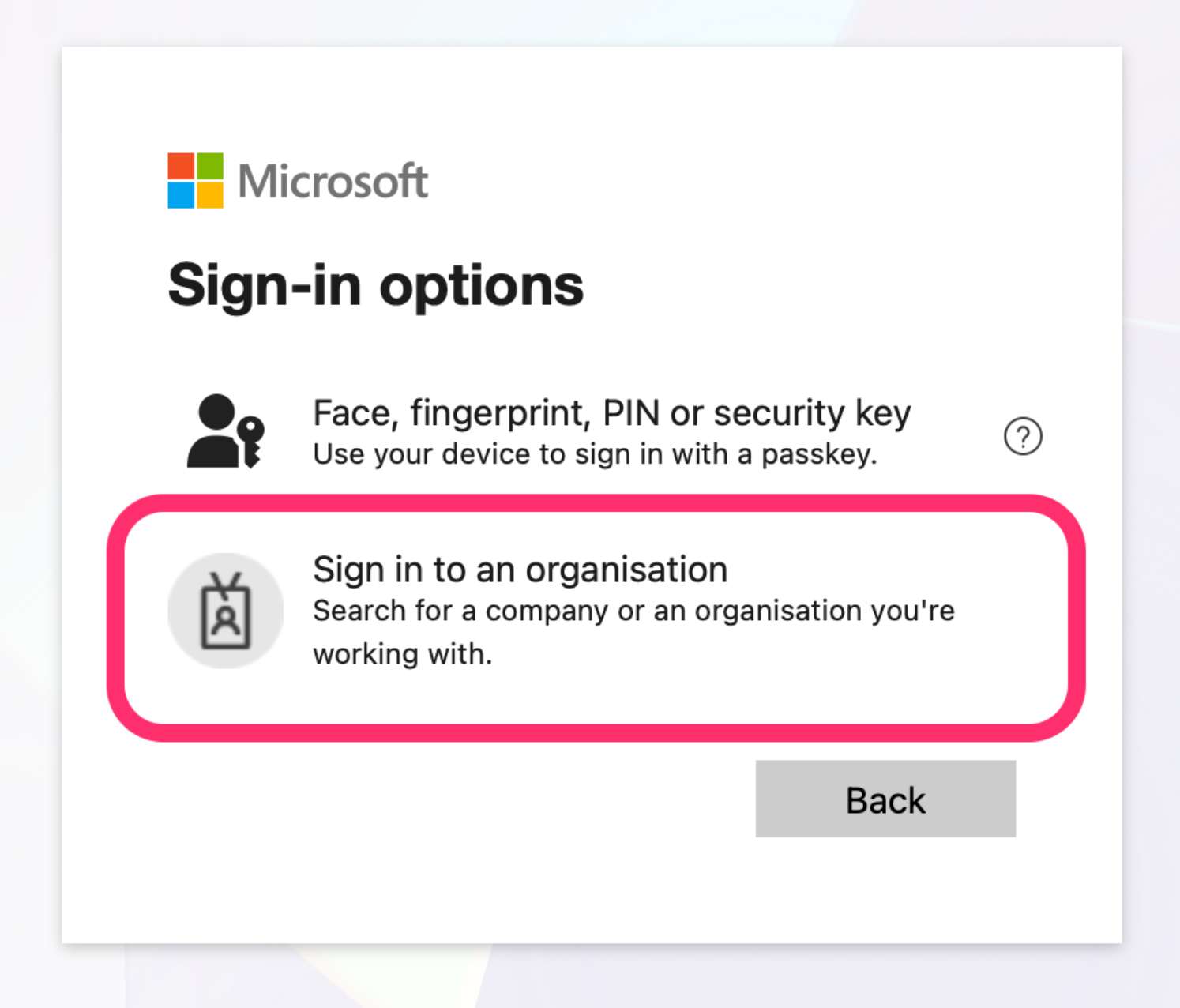
4. Enter your organization domain
Enter your organization’s domain name and click “Next”. To find your domain:- Use the part after the @ symbol in your work email address
- Example: If your email is
john.doe@walktheroom.com, enterwalktheroom.com
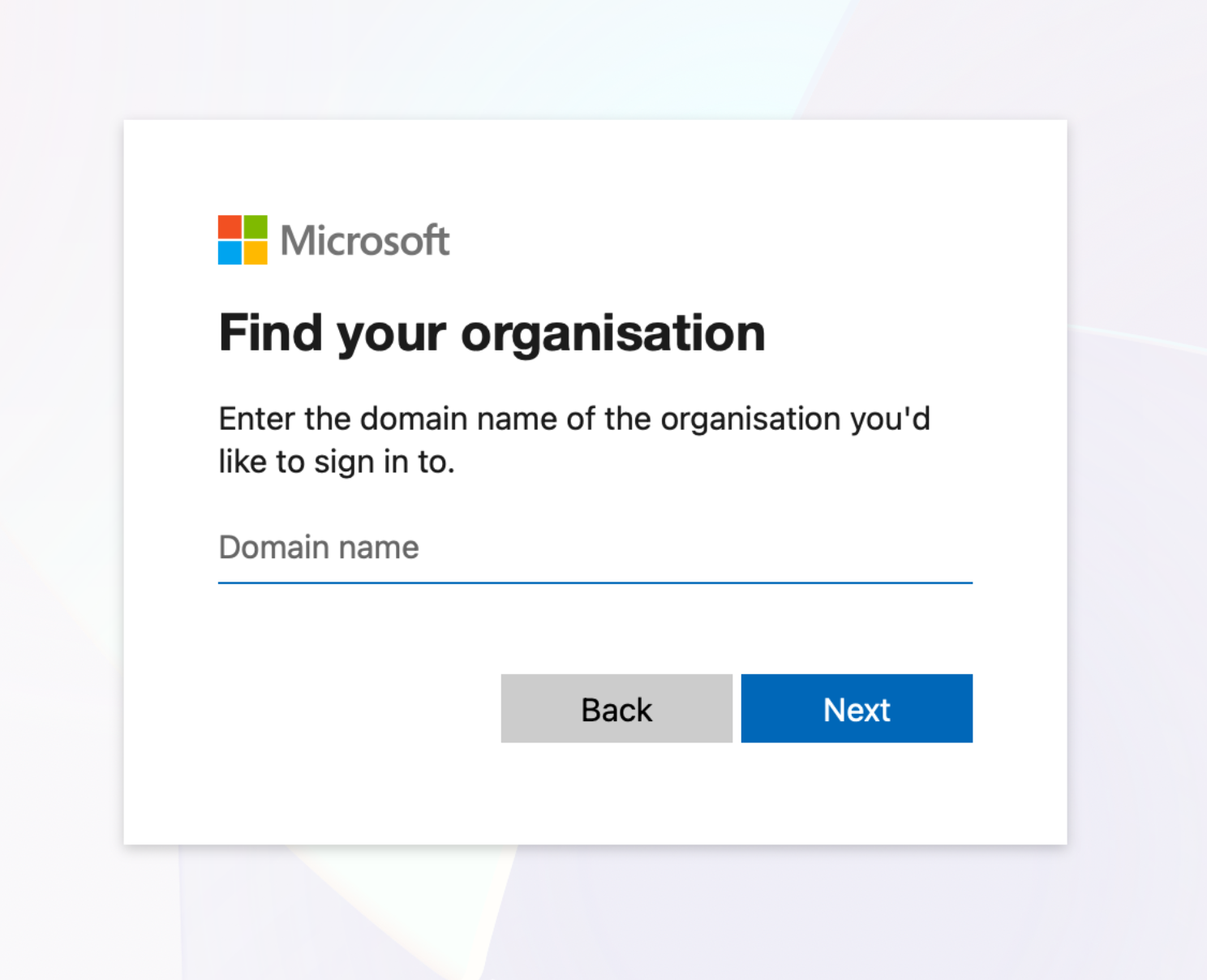
If the domain doesn’t work, contact your IT department for the correct domain name used for Microsoft authentication.
5. Complete authentication
Follow the remaining prompts on your screen to complete the sign-in process. This may include:- Entering your password
- Multi-factor authentication (MFA) if enabled
- Approving the sign-in request