> ## Documentation Index
> Fetch the complete documentation index at: https://docs.walktheroom.com/llms.txt
> Use this file to discover all available pages before exploring further.
# Sign-In with Microsoft
> Step-by-step guide to sign in with your organization's Microsoft account
## Prerequisites
* You need a Microsoft account associated with your organization
* Your organization must have Microsoft Single Sign-On (SSO) configured
## Steps
### 1. Start the Microsoft sign-in process
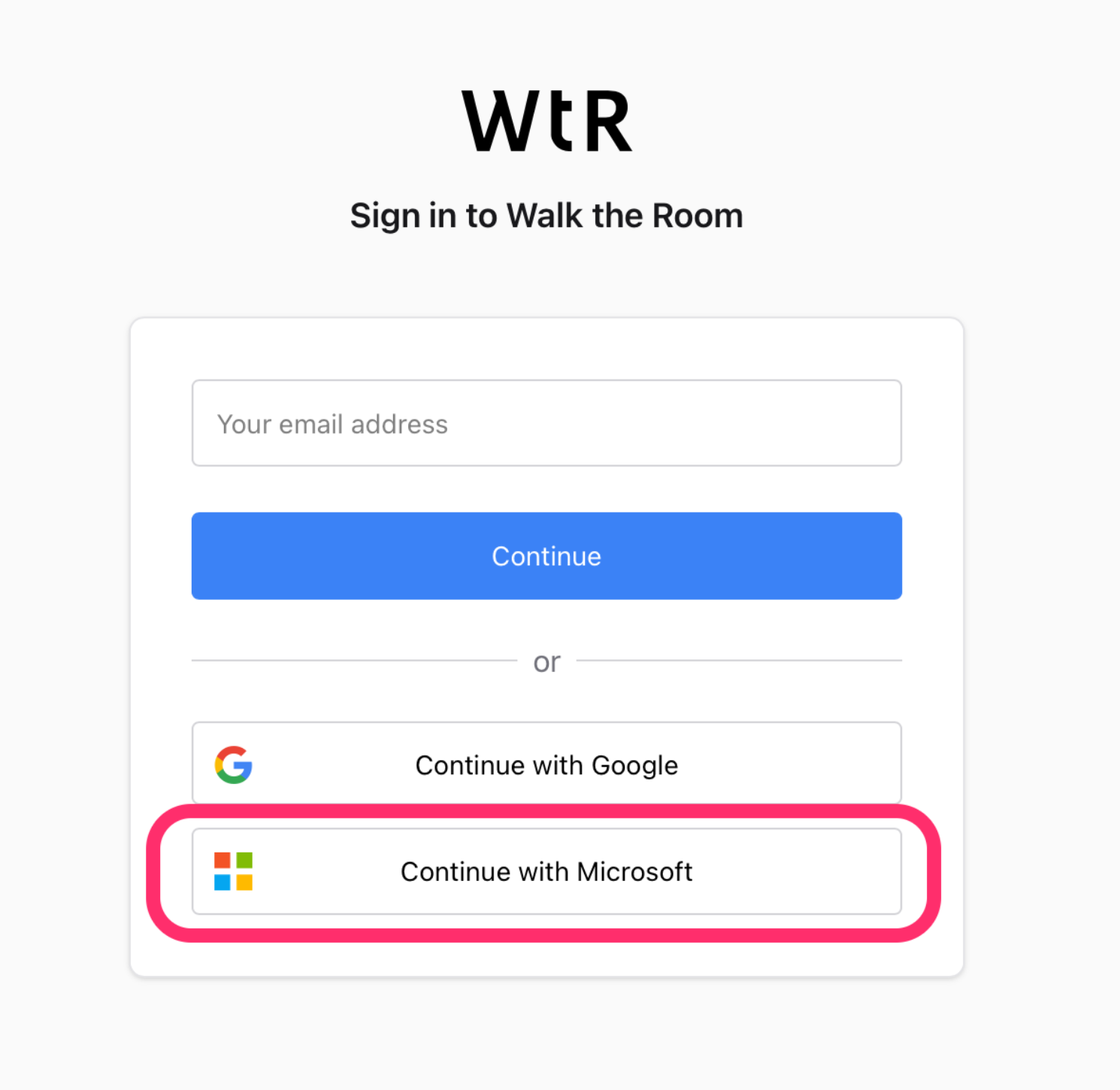
Click on "Continue with Microsoft" to begin the authentication process.
 ### 2. Access sign-in options
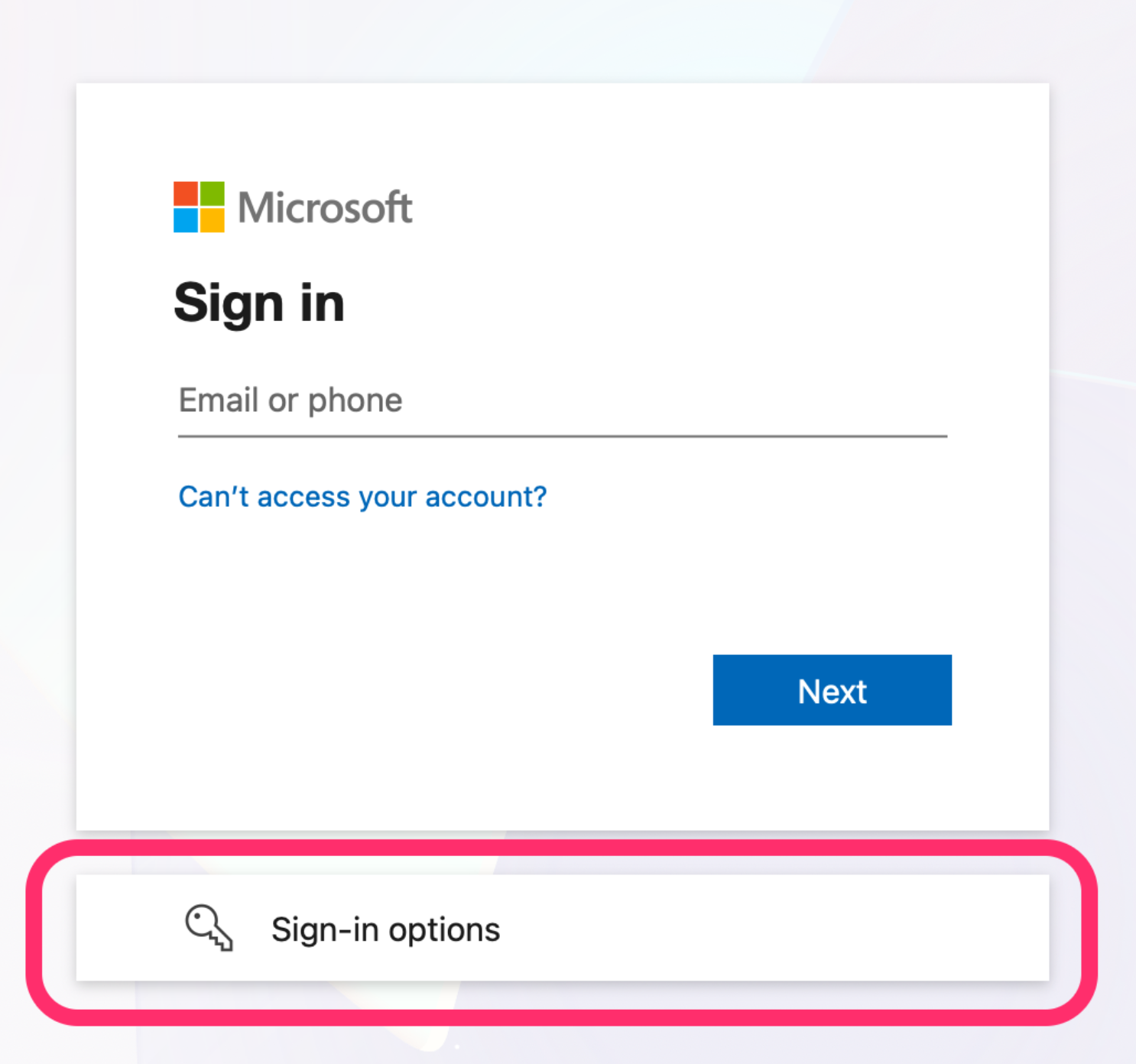
Click on "Sign-in options" without entering an email address first.
### 2. Access sign-in options
Click on "Sign-in options" without entering an email address first.
 ### 3. Select organization sign-in
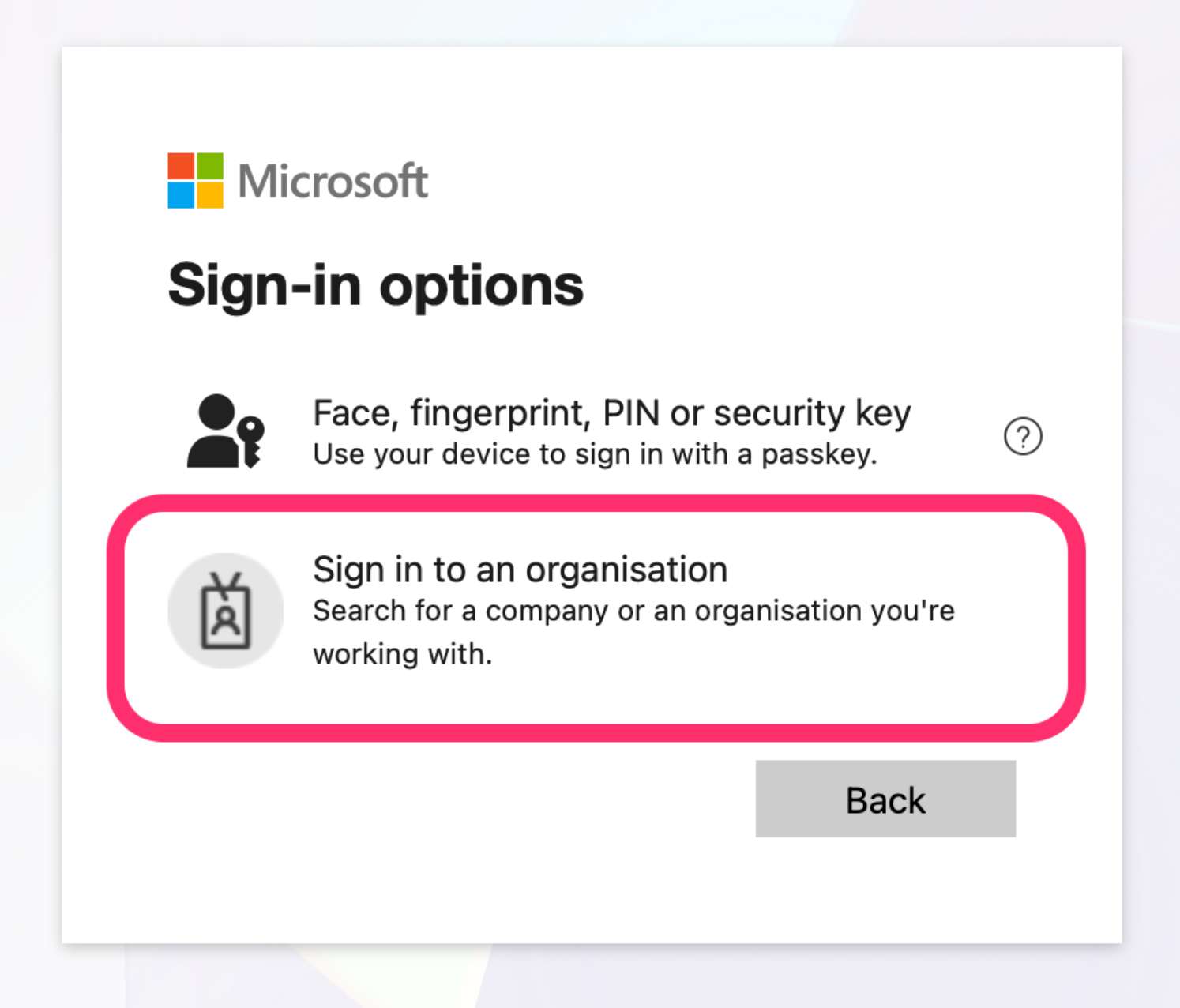
Click on "Sign-in to an organisation" to access your corporate Microsoft account.
### 3. Select organization sign-in
Click on "Sign-in to an organisation" to access your corporate Microsoft account.
 ### 4. Enter your organization domain
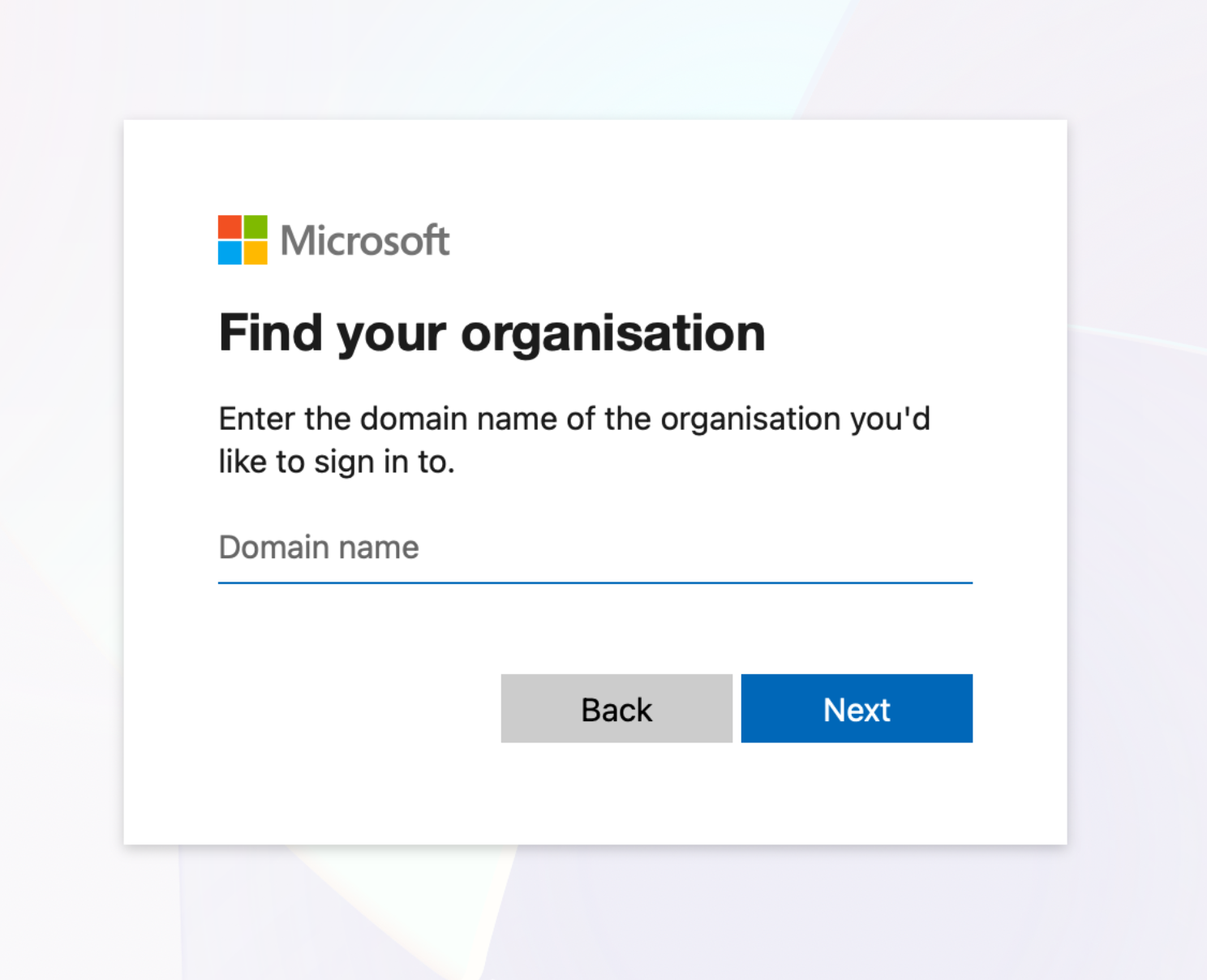
Enter your organization's domain name and click "Next".
**To find your domain:**
* Use the part after the @ symbol in your work email address
* Example: If your email is `john.doe@walktheroom.com`, enter `walktheroom.com`
### 4. Enter your organization domain
Enter your organization's domain name and click "Next".
**To find your domain:**
* Use the part after the @ symbol in your work email address
* Example: If your email is `john.doe@walktheroom.com`, enter `walktheroom.com`
 If the domain doesn't work, contact your IT department for the correct domain name used for Microsoft authentication.
### 5. Complete authentication
Follow the remaining prompts on your screen to complete the sign-in process. This may include:
* Entering your password
* Multi-factor authentication (MFA) if enabled
* Approving the sign-in request
If the domain doesn't work, contact your IT department for the correct domain name used for Microsoft authentication.
### 5. Complete authentication
Follow the remaining prompts on your screen to complete the sign-in process. This may include:
* Entering your password
* Multi-factor authentication (MFA) if enabled
* Approving the sign-in request